Step One
Log in to Account Manager
Visit your Cardinals Account Manager and sign in using the email address associated with your Cardinals account.

Season Ticket Member Guide
Manage your payments, update your payment method and resell your tickets with these step-by-step Cardinals Account Manager guides.
Make a scheduled monthly payment, pay an outstanding balance or pay your full invoice through Cardinals Account Manager.
Visit your Cardinals Account Manager and sign in using the email address associated with your Cardinals account.
Select the Payment tab from the navigation menu at the top of the page.

Scroll to the Active Payment Plans section and select View Details for the payment plan you want to manage.

Select Make a Payment above the payment schedule. You can pay one monthly installment, an outstanding balance or the full remaining invoice.

Update the card connected to your payment plan and, when necessary, pay an outstanding balance using the new payment method.
Visit your Cardinals Account Manager and sign in using the email address associated with your Cardinals account.
Select the Payment tab from the navigation menu at the top of the page.

Scroll to the Active Payment Plans section and select View Details for the payment plan you want to update.

Under the payment plan breakdown, locate Payment Method and select Change.

Add a new payment method or choose an existing card. The selected card will be used for future scheduled payments. Select Update Payment Method to save your changes.

To make a payment immediately after updating your card, select Make a Payment and continue through the payment process.

List your Cardinals tickets for resale through SeatGeek, select your preferred payout method and manage your listing directly from Cardinals Account Manager.
Visit your Cardinals Account Manager and sign in using the email address associated with your Cardinals account.
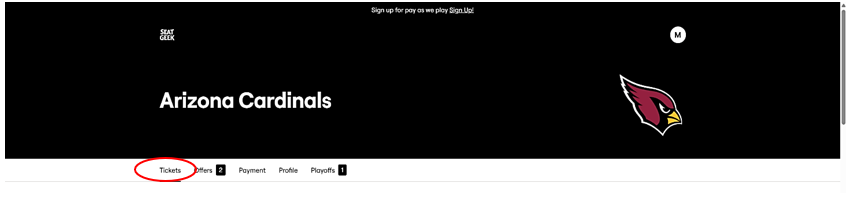
Select the Tickets tab from the navigation menu to view the tickets available in your Cardinals account.
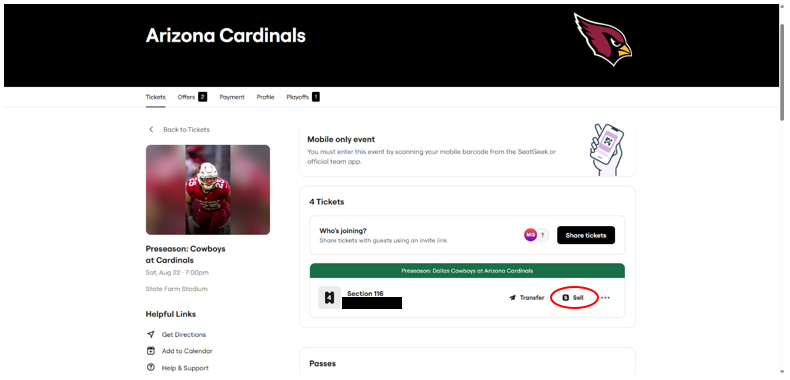
Choose the game containing the tickets you would like to sell, then select the Sell icon to begin creating your listing.
Confirm the quantity of tickets you would like to resell and set your listing price. SeatGeek will provide a recommended price based on comparable seats currently listed on the marketplace, but you can adjust the price as desired.
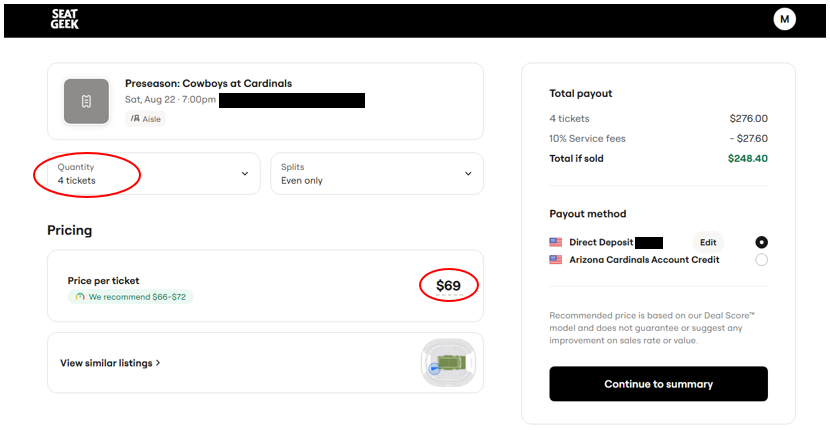
Choose your preferred payout method on the right-hand side of the page. Arizona Cardinals Account Credit will be added directly to your Cardinals account and can be used toward season ticket installments or other single-game ticket opportunities. Direct Deposit will send your payout directly to your bank account.
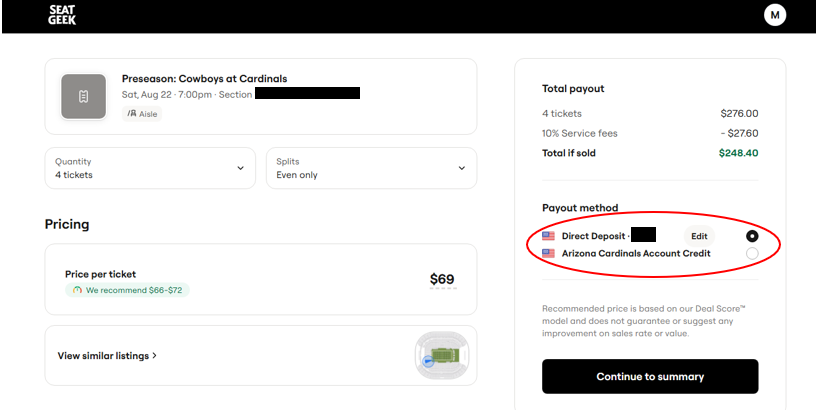
Select Continue to Summary to review your listing. Confirm that the ticket details, listing price and payout information are accurate, then select List Tickets on Marketplace.
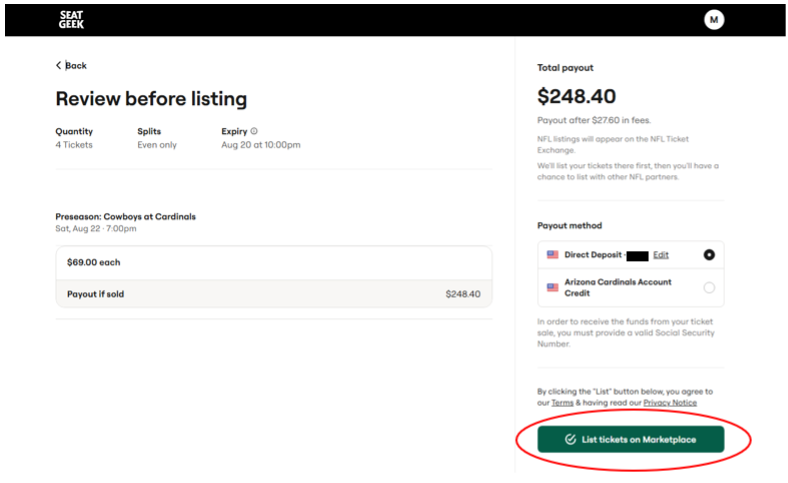
Your tickets are now officially listed for resale on the SeatGeek Marketplace.
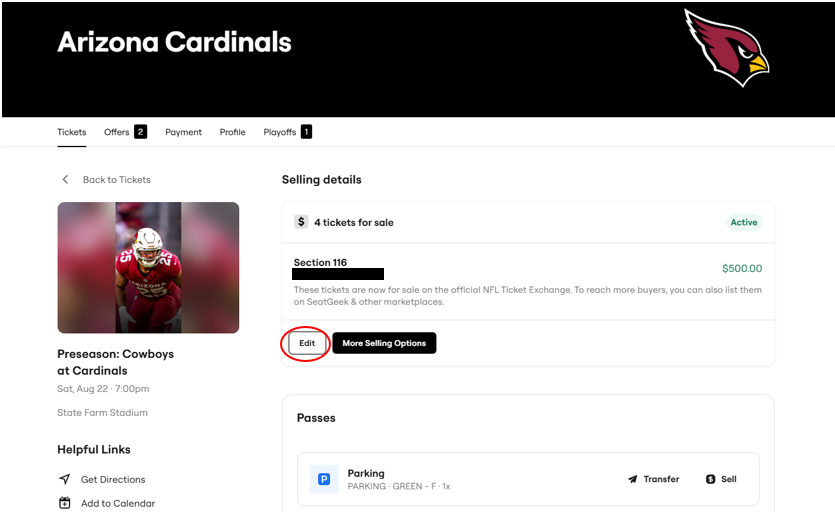
If your tickets have not sold and you would like to change your listing, select the Edit icon. From there, you can update your listing or remove the tickets from the marketplace entirely.